Professional Email with Your Own Domain: Easy Guide
A professional email address can make a business look more trustworthy from the very first message.
Compare these two addresses:
mybusiness@gmail.com
and
info@mybusiness.com
Both can send emails, but the second one clearly represents the business.
The good news is that you do not necessarily need Google Workspace to create a professional email address with your own domain. You need a domain, an email hosting service, and the correct DNS and email settings.
In this guide, we will explain how domain-based email works, what SMTP and IMAP do, how MX records route your email, and why SPF, DKIM, and DMARC are important for security and deliverability.
We will also show how a business can create addresses such as info@domain.com and where VoidMail and VoidPanel can fit into the setup.
What Is Domain-Based Email?
Domain-based email is an email address that uses your own business domain.
For example, if your company owns:
example.com
you can create email addresses such as:
info@example.comsupport@example.comsales@example.comadmin@example.comhello@example.comyourname@example.com
Instead of using a general email service address, your email becomes part of your business identity.
A domain-based email system normally has three main parts:
Domain + Email Hosting + DNS Configuration
Your domain identifies your business.
Your email hosting server stores and handles your mail.
DNS records tell other mail servers where your email should go and which servers are allowed to send messages for your domain.
This is why simply buying a domain does not automatically create a working business email account.
What Do You Need to Set Up Business Email?
Before creating info@example.com, you normally need:
1. A Domain
For example:
example.com
You can register a domain from a domain registrar.
2. Email Hosting
You need a server or email hosting provider that will handle your mailboxes.
This is where services such as VoidMail can fit into the workflow.
3. DNS Access
You need access to your domain's DNS settings so you can configure records such as:
- MX
- SPF
- DKIM
- DMARC
- A/AAAA records when required by your setup
4. Email Client or Webmail
Your team needs a way to read and send email.
This can be through:
- Webmail
- Outlook
- Apple Mail
- Thunderbird
- Mobile email apps
- Other IMAP-compatible clients
So the overall flow looks like this:

SMTP vs IMAP: What Do They Do?
Two terms you will hear frequently when setting up business email are SMTP and IMAP.
They have different jobs.
SMTP - Sending Email
SMTP stands for Simple Mail Transfer Protocol.
It is mainly used to send outgoing email.
For example:
You send an email from:
info@example.com
to:
customer@gmail.com
Your email application connects to an SMTP server, which handles the outgoing message.
Think of SMTP as the delivery system for sending email.
IMAP - Reading and Syncing Email
IMAP stands for Internet Message Access Protocol.
It allows email applications to access messages stored on the mail server.
For example, you can open:
info@example.com
on your laptop and phone.
With IMAP, messages and folders can stay synchronized with the server.
So if you read an email on your laptop, the status can also be reflected on your phone.
The current IMAP standard is defined by IETF RFC 9051.
Simple way to remember:
SMTP = Send
IMAP = Access and sync your mailbox
Some hosting services also support POP3, which can be used to download email, but IMAP is generally more convenient when the same mailbox is accessed from multiple devices.
Understanding MX Records
MX stands for Mail Exchange.
An MX record tells the internet which mail server should receive email for your domain.
Suppose your company owns:
example.com
Someone sends an email to:
info@example.com
The sender's mail server looks up the MX records for example.com.
The MX record might look something like:
example.com MX 10 mail.example.com
The receiving system then knows where to deliver the email.
Important point
MX records are mainly for receiving email.
They are not the same thing as SMTP.
A simple way to understand the difference:
MX → Where should incoming email go?
SMTP → How is email sent?
SPF, DKIM and DMARC Explained
If you want reliable business email, DNS configuration is not enough.
You also need email authentication.
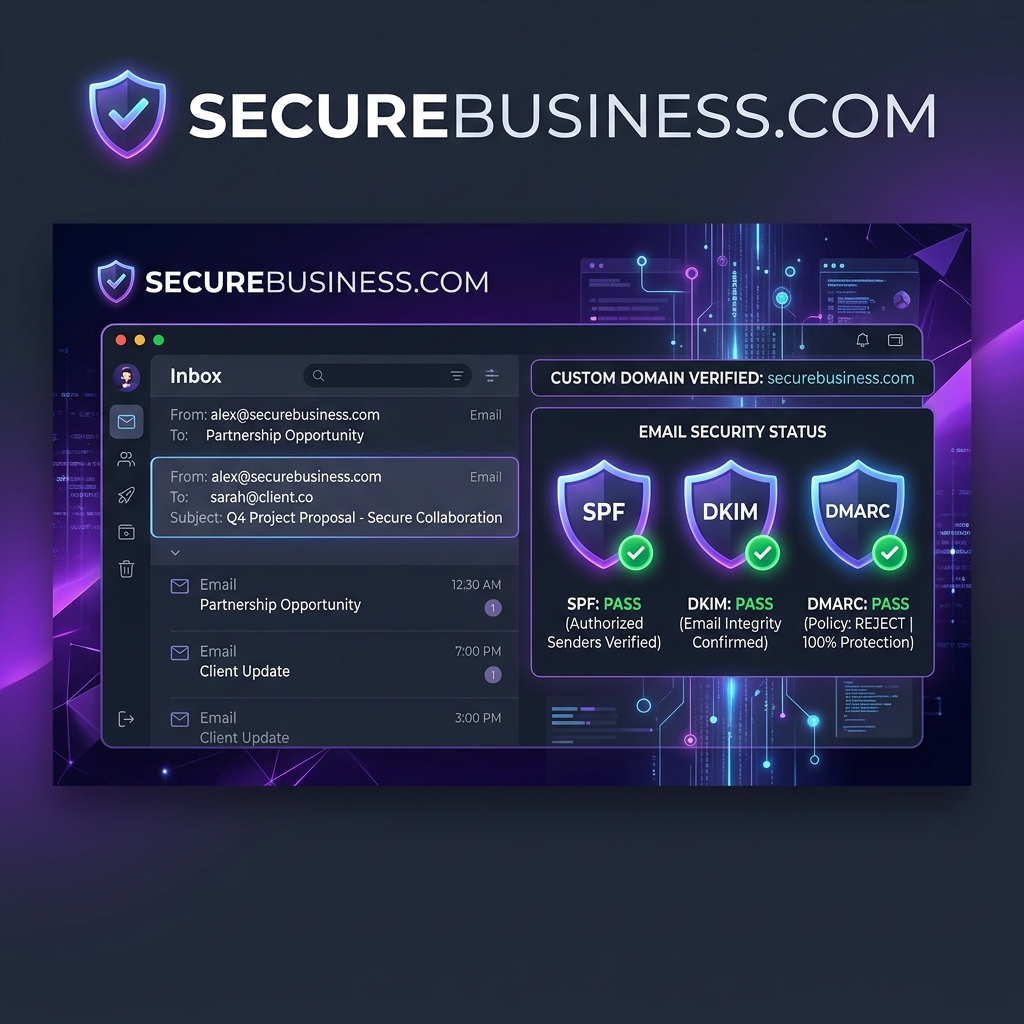
The three important technologies are:
SPF + DKIM + DMARC

Google currently recommends strong authentication for senders and requires more extensive authentication for bulk senders. Google also states that authenticated messages are less likely to be rejected or marked as spam.
SPF - Who Is Allowed to Send?
SPF stands for Sender Policy Framework.
SPF tells receiving mail servers which systems are authorized to send email for your domain.
For example, an SPF record could look like:
v=spf1 ip4:203.0.113.10 ~all
Here, the example IP address represents an authorized sending server.
In a real setup, your email provider will give you the correct SPF value.
SPF is published as a DNS TXT record. The SPF standard (RFC 7208) is defined by the Internet Engineering Task Force (IETF).
Important
Do not blindly copy an SPF record from another company.
Your SPF record must include the actual services that send email for your domain.
If you use multiple services to send email, such as your business email provider and a separate transactional email service, the SPF configuration needs to account for them.
DKIM - Proving the Email Is Genuine
DKIM stands for DomainKeys Identified Mail.
DKIM adds a digital signature to outgoing email.
The receiving server can then check the signature using a public key published in your DNS.
A simplified DKIM DNS record may look like:
selector1._domainkey.example.com TXT v=DKIM1; k=rsa; p=PUBLIC_KEY
The actual public key will be generated by your email provider or mail server.
You should never invent the DKIM key yourself.
DKIM helps the receiving server verify that the message was signed by an authorized system and that the signed content has not been improperly changed in transit. The DKIM standard is documented in RFC 6376 by the IETF.
DMARC - What Happens If Authentication Fails?
DMARC stands for:
Domain-based Message Authentication, Reporting, and Conformance.
It builds on SPF and DKIM.
DMARC tells receiving servers how to handle messages that fail authentication and can also provide reporting about email claiming to come from your domain.
A basic starting DMARC record can look like:
_dmarc.example.com TXT v=DMARC1; p=none; rua=mailto:dmarc@example.com
p=none is commonly used as a monitoring stage while you review authentication results.
After verifying that legitimate systems are passing authentication, a business can consider a stronger policy such as quarantine or reject, depending on its requirements and testing.
Think of the three like this:
SPF: Is this server allowed to send?
DKIM: Is this message properly signed?
DMARC: What should happen when authentication does not pass, and where should reports go?
How to Create info@domain.com
Let's use a simple example.
Suppose your company owns:
yourcompany.com
You want:
info@yourcompany.com
The basic process is:
Step 1: Buy or use your domain
Make sure you control:
yourcompany.com
Step 2: Choose an email hosting service
Your email provider gives you the mail server information and required DNS records.
Step 3: Create the mailbox
Create:
info@yourcompany.com
You can also create:
support@yourcompany.com sales@yourcompany.com admin@yourcompany.com
Step 4: Configure MX records
Point your domain's mail delivery to the email server provided by your hosting service.
Example:
Type: MX Host: @ Priority: 10 Value: mail.example.com
Note: This is only a documentation example. Use the exact MX hostname provided by your email host.
Step 5: Configure SPF
Add the SPF TXT record provided by your email provider.
Example:
Type: TXT Host: @ Value: v=spf1 ip4:203.0.113.10 ~all
Step 6: Configure DKIM
Your provider will provide a DKIM selector and public key.
Example:
Type: TXT Host: selector1._domainkey Value: v=DKIM1; k=rsa; p=PUBLIC_KEY
Step 7: Add DMARC
Start with a monitoring policy:
Type: TXT Host: _dmarc Value: v=DMARC1; p=none; rua=mailto:dmarc@example.com
Step 8: Test
Send test emails to different providers.
Check:
- Gmail
- Outlook
- Yahoo
- Your business mailbox
Also check the authentication results of your sent email.
Server-Based Email Hosting Options
Businesses have several ways to host their email.
Option 1: Shared Email Hosting
This is usually the easiest option for small businesses.
The provider manages the email server infrastructure while the business manages its mailboxes and domain.
Good for:
- Small businesses
- Startups
- Teams with limited technical staff
- Businesses that do not want to manage servers
Option 2: VPS or Dedicated Server
A business can also run email infrastructure on its own VPS or dedicated server.
This gives more control, but it also creates more responsibility.
You may need to manage:
- Mail server software
- Security updates
- Backups
- DNS
- TLS certificates
- Spam protection
- IP reputation
- Reverse DNS/PTR
- DKIM
- SPF
- DMARC
- Monitoring
For a small business, running a mail server yourself can become more work than expected.
Option 3: Managed Business Email Hosting
A managed email service handles much of the infrastructure for you.
This is often a practical middle ground.
You get your own domain-based addresses without having to maintain the entire email server yourself.
This is the model where a service such as VoidMail can be useful for businesses that want professional domain email without depending on Google Workspace.
Email Security and Deliverability
Creating an email address is only the first step.
You also want your emails to reach the recipient's inbox.
Email providers look at several signals when deciding whether to accept, reject, or filter a message.
Important factors include:
- SPF authentication
- DKIM authentication
- DMARC configuration
- TLS encryption
- Sending IP reputation
- Domain reputation
- Valid DNS configuration
- Spam complaints
- Sending volume
- Email content
- Recipient engagement
Google's current sender guidance recommends email authentication, TLS, valid DNS configuration, and responsible sending practices to improve email delivery. For the latest requirements, check the Google Email Sender Guidelines.
For bulk senders sending more than 5,000 messages per day to personal Gmail accounts, Google requires SPF, DKIM and DMARC, along with other requirements.
So email deliverability is not just about having an SMTP server.
Authentication + server configuration + sending reputation + responsible sending practices all matter.
Common Gmail Email Rejection Problems
Sometimes everything looks correct from the sender's side, but Gmail still rejects an email.
The first thing to do is check the bounce-back message. Gmail provides an SMTP error code that can help identify the problem. You can also check Gmail SMTP errors and codes to understand what the error means and what you should check.
Here are some common examples.

These codes and explanations are documented by Gmail.
A common mistake
A business may create:
info@example.com
and assume that because the mailbox works, email deliverability is automatically solved.
It is not.
The mailbox can work perfectly while outgoing messages still fail authentication.
That's why DNS and email authentication should be checked before using a new business email for important communication.
How VoidMail and VoidPanel Fit Into the Workflow
This is where the setup becomes easier for a business.
Based on the VoidMail setup shown in our platform, businesses can use domain-based email hosting with features such as IMAP, POP3, SMTP, Roundcube Webmail, SSL/TLS support, spam protection and self-service management.
The basic workflow is:

For example:
yourcompany.com
↓
DNS
↓
VoidMail
↓
info@yourcompany.com
support@yourcompany.com
sales@yourcompany.com
Where VoidPanel fits
VoidPanel can act as the management layer for your hosting infrastructure, helping businesses manage their services from a central interface.
Instead of requiring a business owner to manually manage every part of the server infrastructure, the control panel can provide a central place for managing the services available through the platform.
The exact DNS values, mailbox limits, SMTP hostnames and authentication records should always be taken from the specific VoidMail/VoidPanel setup or plan being used.
This is important: businesses should not copy DNS values from random tutorials. Email providers can use different mail servers, selectors and authentication values.
Complete Email Setup Tutorial
Here is the complete process in a simple format.
Step 1 - Get Your Domain
Example:
yourcompany.com
Make sure you have access to its DNS management.
Step 2 - Choose Email Hosting
Choose a business email hosting service such as VoidMail.
The provider should give you:
- Mail server hostname
- SMTP settings
- IMAP settings
- MX records
- SPF information
- DKIM information
- Webmail access
Step 3 - Create Your Mailbox
Create:
info@yourcompany.com
Then create additional accounts if needed:
sales@yourcompany.com support@yourcompany.com admin@yourcompany.com
Step 4 - Add MX Records
Go to your DNS manager.
Add the MX records provided by your email host.
For example:
Type: MX Host: @ Priority: 10 Value: mail.example.com
Again, this is only an example.
Use your provider's actual hostname.
Step 5 - Add SPF
Add the SPF record provided by your email service.
Example:
Type: TXT Host: @ Value: v=spf1 ip4:203.0.113.10 ~all
Make sure all legitimate sending services are covered.
Also, avoid creating multiple independent SPF records for the same domain. SPF should be published as a single SPF policy that includes the necessary authorized senders.
Step 6 - Enable DKIM
Your provider should generate the DKIM key.
You will normally receive something similar to:
selector1._domainkey
with a TXT value containing the public key.
Add that record to DNS.
Step 7 - Add DMARC
Start with monitoring:
v=DMARC1; p=none; rua=mailto:dmarc@yourcompany.com
Monitor the reports and confirm legitimate senders are passing authentication before moving to a stricter policy.
Step 8 - Configure Your Email App
Your email provider will give you the actual SMTP and IMAP server details.
The general idea is:
Incoming Mail IMAP → Mail Server Outgoing Mail SMTP → Mail Server
Use the provider's recommended secure ports and TLS settings rather than guessing them.
Step 9 - Test Everything
Send emails:
Business Email → Gmail Business Email → Outlook Gmail → Business Email Outlook → Business Email
Check whether:
- Emails are received
- Replies work
- Attachments work
- Spam filtering works
- Authentication passes
- No unexpected bounce messages appear
Google also provides Postmaster Tools for monitoring authentication, domain/IP reputation, spam rate and delivery errors for eligible Gmail traffic.
Email Setup Checklist
Before considering the setup complete, check each item.
Domain
- Domain is active
- DNS access is available
- Domain ownership is confirmed
Mailbox
-
info@domain.comcreated - Password configured securely
- Additional mailboxes created if required
- Webmail access tested
DNS
- MX record configured
- SPF configured
- DKIM configured
- DMARC configured
- No conflicting DNS records
Sending
- SMTP configured
- TLS enabled
- Test email sent
- Gmail delivery tested
- Outlook delivery tested
Security
- Strong mailbox passwords
- SPF passes
- DKIM passes
- DMARC passes/alignment checked
- Unused accounts removed
- Sending reputation monitored
Deliverability
- No unexpected bounce messages
- Spam placement checked
- Sending volume increased gradually
- Legitimate recipients are used
- Marketing emails follow applicable unsubscribe requirements
Final Thoughts
A professional business email does not have to mean using Google Workspace.
If you already own a domain, you can use a suitable email hosting service to create addresses such as:
info@yourcompany.com
The important part is not only creating the mailbox. The domain, DNS, mail server and authentication systems all need to work together.
SMTP handles outgoing email.
IMAP provides access and synchronization with the mailbox.
MX records tell the internet where incoming email should be delivered.
SPF identifies authorized sending systems.
DKIM adds a cryptographic signature to outgoing messages.
DMARC provides policy and reporting around authentication and domain alignment.
With the right email hosting setup and proper DNS configuration, businesses can have professional domain email without having to build and maintain an entire mail infrastructure themselves.
At VoidOnyx, we help businesses build a more professional digital presence with practical solutions for domain-based email and business infrastructure.
Frequently Asked Questions
Can I create a business email without Google Workspace?
Yes. You can use another business email hosting provider with your own domain.
For example:
info@yourcompany.com
does not require the mailbox itself to be hosted by Google Workspace.
Do I need a domain to create info@domain.com?
Yes. You need control of the domain used after the @ symbol.
For example, to create:
info@example.com
you need control of:
example.com.
What is the difference between SMTP and IMAP?
SMTP is primarily used for sending email.
IMAP is used by email clients to access and synchronize messages stored on the mail server.
Is SPF enough for business email?
SPF is important, but it should not be treated as the complete email security solution.
Google recommends using SPF, DKIM and DMARC together for stronger authentication and deliverability.
Why are my emails going to Gmail spam?
There can be several reasons.
Common causes include:
- Authentication problems
- Poor domain or IP reputation
- High spam complaints
- Sending unwanted email
- Incorrect DNS configuration
- Sudden sending-volume increases
- Message content or other spam signals
Gmail evaluates multiple signals, so authentication alone does not guarantee inbox placement.
What should I do if Gmail rejects my email?
First, check the bounce-back message and SMTP error code.
Then check your:

Gmail documents specific rejection codes that can help identify authentication, TLS, rate-limit and reputation problems.
Technical Verification Report
Verification Status: Technically reviewed

The technical explanations were checked against IETF standards for SPF and DKIM and Google's current Gmail sender guidance.