How to Debug SMTP Connection Issues, Port Blockades, and Mail Server Health
Reliable email delivery is an essential but often overlooked part of modern web applications, SaaS platforms, and enterprise systems. When SMTP works correctly, it operates quietly in the background. When it fails, however, diagnosing the root cause can be surprisingly difficult.
An application may report only a generic connection error, while the actual problem could be a blocked port, DNS misconfiguration, firewall rule, expired TLS certificate, authentication failure, or SMTP server health issue.
The key to troubleshooting SMTP problems is to identify which layer is failing: DNS, TCP connectivity, TLS negotiation, or the SMTP protocol itself.
This guide explains how SMTP connections work, the differences between ports 25, 587, and 465, and how to use command-line tools such as dig, nslookup, OpenSSL, netcat, Test-NetConnection, and Nmap to diagnose mail server problems. It also explains how an SMTP connection and health testing tool can automate these checks.
1. Understanding the SMTP Connection Handshake
SMTP, or Simple Mail Transfer Protocol, is a text-based application-layer protocol used to transfer email between mail servers and submit messages from applications or mail clients to mail servers.
The core SMTP protocol is defined by RFC 5321, while encrypted SMTP using STARTTLS is described in RFC 3207.
A typical SMTP session consists of several stages:
1. TCP Connection and Server Banner
The process starts when the SMTP client establishes a TCP connection to the destination server.
Depending on the service, this may happen on port 25, 587, or 465.
After the connection is established, the server normally sends an SMTP greeting such as:
220 smtp.example.com ESMTP ready
The time required to receive this banner can provide an early indication of server health.
For example:
- Immediate banner → server is responding normally
- Long delay → server may be overloaded or network latency may be high
- TCP connection succeeds but no banner arrives → possible filtering, proxy interference, or SMTP service problems
- Connection timeout → firewall, routing, or port filtering may be involved
2. EHLO or HELO
The SMTP client then introduces itself using the EHLO command:
EHLO mail.example.com
A healthy server responds with a list of supported SMTP extensions:
250-smtp.example.com
250-SIZE 52428800
250-8BITMIME
250-AUTH LOGIN PLAIN
250-STARTTLS
250 HELP
The response is important because it tells the client what functionality the server supports.
For example, the presence of:
250-STARTTLS
indicates that the server supports upgrading the connection to TLS.
If EHLO is rejected, some clients fall back to the older HELO command.
3. TLS Negotiation
SMTP encryption can work in two different ways.
STARTTLS, commonly used on ports 25 and 587, begins as a normal SMTP session. The client detects the STARTTLS capability and then requests a TLS upgrade:
STARTTLS
The server responds:
220 2.0.0 Ready to start TLS
The TLS handshake then begins.
Port 465 uses implicit TLS. In this mode, the TLS handshake occurs immediately after the TCP connection is established, before normal SMTP commands are exchanged.
4. Authentication and Mail Transaction
After TLS has been established, a submission client may authenticate:
AUTH LOGIN
or use another supported authentication mechanism.
The client can then issue commands such as:
MAIL FROM:<sender@example.com>
RCPT TO:<recipient@example.com>
DATA
The message body follows the DATA command.
5. Clean Session Termination
After the SMTP transaction is complete, the client should close the session cleanly:
QUIT
The server normally responds:
221 2.0.0 Bye
A server that consistently hangs during connection termination may indicate an implementation issue or contribute to connection-pool exhaustion in applications maintaining many SMTP connections.
2. SMTP Ports 25, 587, and 465: What's the Difference?
Choosing the correct SMTP port is one of the most important steps when configuring an application or mail server.
PortPrimary PurposeTLS ModelTypical Use25SMTP relayPlain SMTP with optional STARTTLSMail server-to-mail server delivery587Message submissionSTARTTLSApplications, mail clients, transactional email465Message submissionImplicit TLSSecure SMTP submission
Port 25 — SMTP Relay
Port 25 is traditionally used for server-to-server SMTP communication.
For example, when one mail server delivers a message to another server after looking up the recipient domain's MX record, port 25 is commonly used.
STARTTLS may be offered on port 25, but encryption is not necessarily mandatory for every SMTP connection.
Outbound port 25 is also frequently restricted by cloud providers, hosting companies, and ISPs to reduce spam and abuse.
Therefore, if an application cannot connect to a remote SMTP server on port 25, the first step should be checking whether the hosting provider or network blocks outbound SMTP traffic.
Port 587 — Message Submission
Port 587 is the standard SMTP message submission port.
It is designed for authenticated clients and applications that need to submit outgoing email to an SMTP service.
Typical configuration:
SMTP Host: smtp.example.com
Port: 587
Security: STARTTLS
Authentication: Required
For most web applications and transactional email integrations, port 587 is an appropriate starting point when the provider supports it.
Port 465 — SMTP over Implicit TLS
Port 465 provides SMTP submission using implicit TLS.
Unlike STARTTLS, TLS is established immediately after the TCP connection.
Typical configuration:
SMTP Host: smtp.example.com
Port: 465
Security: SSL/TLS
Authentication: Required
A common configuration mistake is using port 465 with STARTTLS settings or using port 587 with implicit TLS settings. The TCP connection may succeed, but the TLS or SMTP handshake will fail.
3. Why Port 25 May Be Blocked
One of the most common SMTP troubleshooting scenarios is a timeout when connecting to port 25.
For example:
Connection timed out
This does not automatically mean the destination SMTP server is unavailable.
Outbound port 25 may be blocked by:
- Cloud providers
- Residential ISPs
- Corporate firewalls
- Hosting providers
- Network security appliances
- Local firewall policies
The restriction is generally intended to reduce spam originating from compromised systems.
Before changing application code, verify whether the source network permits outbound TCP connections to port 25.
If the application is intended to submit mail through a transactional email provider, using port 587 or 465, when supported by that provider, is usually more appropriate than relying on direct port-25 delivery.
4. DNS Diagnostics for SMTP
Before testing SMTP itself, verify that the hostname resolves correctly.
DNS problems can make a perfectly healthy mail server appear unreachable.
Checking MX Records with dig
On Linux and macOS, use:
dig MX gmail.com +short
A response may look similar to:
5 gmail-smtp-in.l.google.com.
10 alt1.gmail-smtp-in.l.google.com.
MX records identify the mail servers responsible for receiving email for a domain.
For an SMTP service configured by hostname, you can also check its A or AAAA records:
dig A smtp.example.com +short
and:
dig AAAA smtp.example.com +short
Windows DNS Testing
Windows users can use the built-in nslookup command:
nslookup -type=MX gmail.com
To resolve an SMTP hostname:
nslookup smtp.example.com
If DNS resolution fails, there is little value in troubleshooting TLS or SMTP authentication until the hostname problem has been resolved.
5. Testing SMTP TLS with OpenSSL
OpenSSL is one of the most useful tools for diagnosing SMTP TLS problems.
It allows administrators to inspect:
- TCP connectivity
- TLS negotiation
- Certificate validity
- Certificate chains
- TLS protocol versions
- Cipher suites
- SMTP server responses
Testing Port 587 with STARTTLS
Use:
openssl s_client -connect smtp.example.com:587 -starttls smtp -crlf
A successful connection should show TLS information followed by the SMTP server's response.
You can then issue:
EHLO test.example.com
and inspect the server's advertised capabilities.
Testing Port 465 with Implicit TLS
For port 465:
openssl s_client -connect smtp.example.com:465 -crlf
Here, TLS is established immediately.
What to Look For
Pay attention to output such as:
Verify return code: 0 (ok)
A certificate verification error may indicate:
- Expired certificate
- Incorrect hostname
- Missing intermediate CA
- Untrusted certificate authority
- Incorrect server configuration
A TLS handshake failure may instead indicate incompatible protocol versions, cipher configuration, or incorrect client/server expectations.
6. Testing Port Reachability with Netcat
Before troubleshooting SMTP commands or TLS, verify whether the TCP port is reachable.
On Linux or macOS:
nc -zv -w 5 smtp.example.com 587
A successful result may look like:
Connection to smtp.example.com 587 port [tcp/submission] succeeded!
This test answers a simple but important question:
Can the client establish a TCP connection to this host and port?
If the connection times out, investigate:
- Firewall rules
- Security groups
- Network ACLs
- ISP restrictions
- Cloud provider SMTP restrictions
- Routing problems
If the connection is immediately refused:
Connection refused
the host may be reachable but nothing is accepting connections on that port, or an intermediate device is actively rejecting the connection.
7. Testing SMTP Connectivity on Windows
Windows includes a built-in alternative to netcat:
Test-NetConnection -ComputerName smtp.example.com -Port 587
Look for:
TcpTestSucceeded : True
If it returns:
TcpTestSucceeded : False
the TCP connection could not be established.
This makes Test-NetConnection particularly useful when diagnosing SMTP issues on Windows servers where additional networking utilities are not installed.
8. Using Nmap for SMTP Diagnostics
Nmap can provide a broader view of SMTP services.
For example:
nmap -p 25,587,465 --script smtp-commands smtp.example.com
This can help identify:
- Which SMTP ports are accessible
- Whether a service is listening
- Supported SMTP commands
- Server capabilities
Nmap should be used only against systems you own or are authorized to test.
For routine troubleshooting, it is often enough to start with DNS resolution, TCP connectivity, and OpenSSL before using broader scanning.
9. Common SMTP Failure Scenarios
SMTP problems become much easier to diagnose when errors are mapped to the layer where they occur.
Connection Timeout
Example:
Connection timed out
Likely causes include:
- Firewall blocking outbound traffic
- Port filtering
- Cloud provider restrictions
- Network routing problems
- Destination service unavailable
Start with:
nc -zv -w 5 smtp.example.com 587
or on Windows:
Test-NetConnection smtp.example.com -Port 587
Connection Refused
Example:
ECONNREFUSED
This generally means the destination host was reached but the connection was refused.
Possible causes include:
- SMTP service not running
- Port not listening
- Firewall actively rejecting the connection
- Incorrect port configuration
TLS Handshake Failure
Possible causes include:
- Expired certificate
- Incorrect hostname
- Unsupported TLS version
- Cipher mismatch
- Incorrect STARTTLS configuration
- Using implicit TLS against a STARTTLS port
Use:
openssl s_client -connect smtp.example.com:587 -starttls smtp
to inspect the TLS negotiation.
Authentication Failure
A successful TCP and TLS connection does not guarantee that email submission will work.
Authentication can fail because of:
- Incorrect username
- Incorrect password
- Disabled SMTP authentication
- OAuth requirements
- Application password requirements
- Provider security policies
- Unsupported authentication mechanism
Always check the SMTP provider's current authentication requirements.
10. Checking SMTP Server Health
A successful connection test is only one part of mail server health.
A useful SMTP health check should examine several layers.
TCP Connectivity
Measure:
- Connection success/failure
- Connection latency
- Timeout duration
SMTP Banner
Capture the server's initial 220 response and measure how quickly it arrives.
EHLO Capabilities
Record capabilities such as:
SIZE
8BITMIME
AUTH
STARTTLS
PIPELINING
This can reveal configuration differences between SMTP servers.
TLS Negotiation
For encrypted SMTP connections, verify:
- TLS version
- Certificate validity
- Certificate hostname
- Certificate chain
- Negotiated cipher
Session Termination
Send:
QUIT
and verify that the server responds appropriately.
Together, these checks provide a much better picture of SMTP health than simply testing whether a port is open.
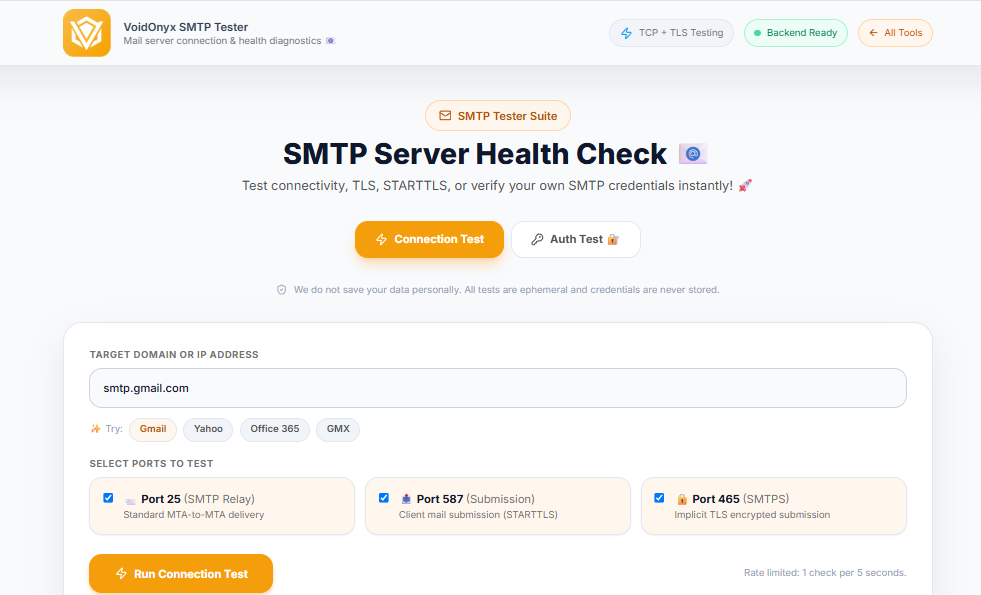
11. Automating SMTP Connection and Health Testing
Running dig, openssl, nc, and Nmap manually is useful during incident response, but it becomes inefficient when multiple servers, ports, and environments need to be tested repeatedly.
An SMTP Connection & Health Tester can automate these diagnostics.
For each SMTP endpoint, the application can perform checks such as:
- DNS resolution
- TCP connection
- Connection latency
- SMTP banner detection
- EHLO/HELO negotiation
- STARTTLS detection
- TLS handshake
- Certificate validation
- SMTP capability discovery
- Clean QUIT handling
The results can then be classified into simple health states.
Open & Reachable
The TCP connection succeeds and the SMTP server responds normally.
Filtered / Blocked
The connection times out, suggesting possible network filtering or firewall restrictions.
Port Closed
The destination is reachable but the requested port refuses the connection.
TLS Handshake Error
TCP connectivity succeeds, but TLS negotiation fails.
SMTP Protocol Error
The server is reachable but returns unexpected or invalid SMTP responses.
Persisting these results in a database also makes it possible to track SMTP health over time and identify recurring failures.
12. SMTP Troubleshooting Checklist
When an application suddenly stops sending email, troubleshoot the problem in layers.
Step 1: Verify the SMTP hostname
Make sure the application is connecting to the exact hostname provided by the email service.
Avoid replacing a configured SMTP hostname with an arbitrary IP address unless the provider specifically instructs you to do so.
Step 2: Check DNS resolution
Use:
dig A smtp.example.com +short
or:
nslookup smtp.example.com
Step 3: Test TCP connectivity
For example:
nc -zv -w 5 smtp.example.com 587
Step 4: Test TLS
For STARTTLS:
openssl s_client -connect smtp.example.com:587 -starttls smtp
For implicit TLS:
openssl s_client -connect smtp.example.com:465
Step 5: Verify SMTP authentication
Confirm that the username, credentials, authentication mechanism, and provider security requirements are correct.
Step 6: Check your application's TLS trust store
An outdated CA bundle can cause an SMTP connection to work on one machine but fail in another.
Check the CA certificates available to your runtime and operating system.
Step 7: Check firewall and cloud restrictions
Review:
- Host firewall
- Cloud security groups
- Network ACLs
- Corporate firewall
- ISP restrictions
- Provider-level SMTP restrictions
Step 8: Check sender reputation
If the SMTP connection works but messages are not reaching recipients, investigate a different layer.
Check:
- Reverse DNS/PTR
- SPF
- DKIM
- DMARC
- Sending IP reputation
- Domain reputation
- DNS blocklists/DNSBLs
- Recipient-side filtering
A successful SMTP handshake does not guarantee inbox delivery.
13. SMTP Connectivity vs. Email Deliverability
One of the most important distinctions in email troubleshooting is the difference between SMTP connectivity and email deliverability.
A server may successfully establish:
TCP → TLS → SMTP → AUTH
and still have its messages rejected, deferred, or placed in spam.
Connectivity testing answers:
Can my system communicate with the SMTP server?
Deliverability testing asks:
Will recipient mail systems accept and trust the message?
These are different problems and should be investigated separately.
For deliverability issues, examine:
- SPF configuration
- DKIM signatures
- DMARC policy
- Reverse DNS
- Sending reputation
- Bounce responses
- Recipient server responses
- Blocklists and reputation services
Conclusion
SMTP troubleshooting becomes significantly easier when failures are isolated by layer.
Start with DNS, then verify TCP connectivity, inspect the TLS handshake, and finally examine SMTP capabilities and authentication.
The most useful diagnostic tools include:
dig
nslookup
openssl s_client
nc
Test-NetConnection
nmap
Port 25 is primarily associated with server-to-server SMTP relay and is frequently restricted for outbound connections. Port 587 is widely used for authenticated message submission with STARTTLS, while 465 provides message submission using implicit TLS.
For organizations that regularly depend on email delivery, automating these checks through an SMTP Connection & Health Tester can turn a vague "emails aren't sending" incident into a precise diagnosis such as DNS failure, blocked port, refused connection, TLS error, authentication failure, or downstream deliverability problem.
The goal is not simply to determine whether an SMTP server is online. A useful health test should determine where the connection is failing, why it is failing, and whether the problem is network-level, TLS-level, SMTP-level, or downstream deliverability-related.